#10 Tap and go
No matter how crazy the name of this app is, the actual utility will really impress you. When you're setting up your new Lollipop device for the first time, you'll be presented with the option to "tap and go." This NFC-and-Bluetooth-powered data transfer lets you move all of your Google Account details, configuration settings, data and apps over to a new device just by placing your old phone or tablet against it. Widgets and wallpaper are swapped over as well. Feel free to share !
.jpeg)
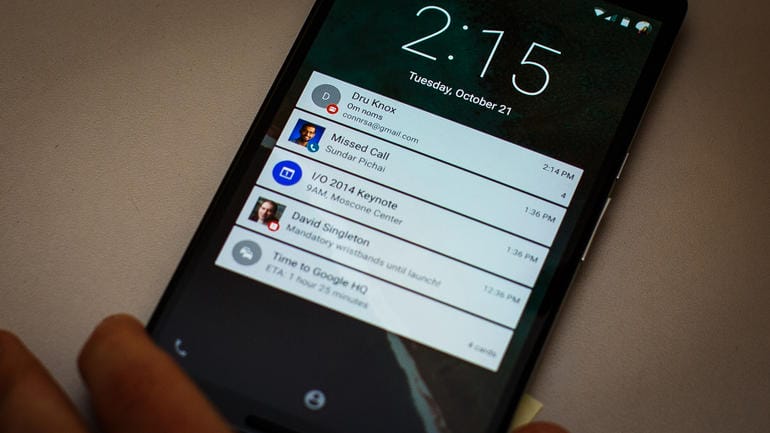
#9 Deal with notification from the lock screen
Dealing with all the notifications can be really difficult at times. In Lollipop all of your app notifications appear on the lock screen ready for viewing. Not only that, but you can interact with them as well. Swipe to dismiss, tap to reply and so on, depending on the app in question. A double-tap gets you into the relevant app.
#8 Prioritize your apps
Priorities do change. Change them here too. Android 5.0 Lollipop lets you set up a list of important apps that are allowed to disturb you even when most aren't. Head to Settings -> Sound & notification -> App notifications and you can choose to block each app or mark it as a priority one. Tap the volume slider on your device to activate priority mode indefinitely or for one hour (a star will appear in the status bar).
.jpeg)
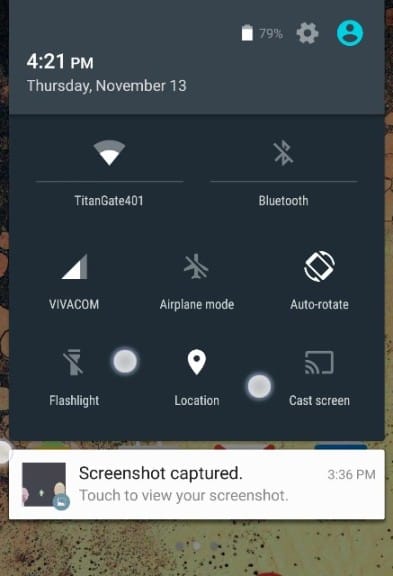
#7 Use the flashlight
Flashlight is always an added feature in your cell phone. Flashlight apps have always been popular on Android, so Google has decided to roll one into Lollipop to save you the trouble of having download a third-party one. Pull down the notification drawer then tap the top bar to reveal the flashlight app alongside other options like airplane mode. The app will only appear if your device has an LED flash alongside its camera.
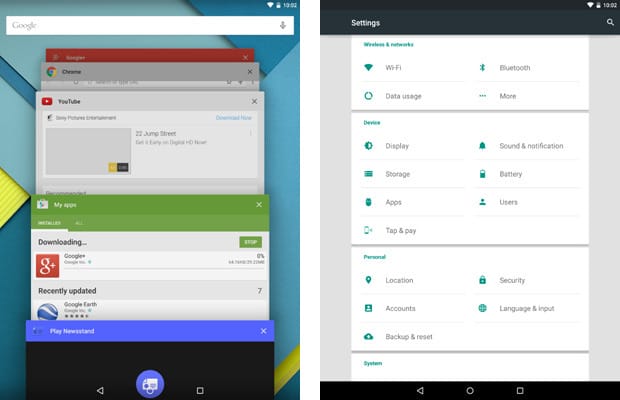
#6 Search settings and networks
Read this carefully, this will be very helpful. Google's search bar is getting more ubiquitous with each passing version of Android, and in Lollipop it's made it into the Settings app. Tap the magnifying glass icon to use it. It can be a quick way of finding a particular option you're looking for, especially if you don't already know what menu or heading it's under. You can use the same feature to bring up saved Wi-Fi networks too.
#5 Predict battery life
Now its easy to use your phone constructively. New to Android 5.0 Lollipop is the ability to see how much time is left before the battery runs out of juice, or how long you need to wait before your device is fully charged up. Tap on the battery icon in the notification drawer to see either reading (the time-until-charged information also appears on the lock screen a few minutes after you've connected your device to a power source).
.jpg)
#4 App Setting
This is another brilliant feature in Android lollipop. The lock screen really has been given a major overhaul with the Android 5.0 Lollipop update, and the improvements include the ability to jump straight to an app's settings or information panel right from the lock screen. Long-press on any notification and (depending on the app) you'll see a cog icon (the app settings shortcut) and an info icon (the app notification settings shortcut). Isn't this brilliant?
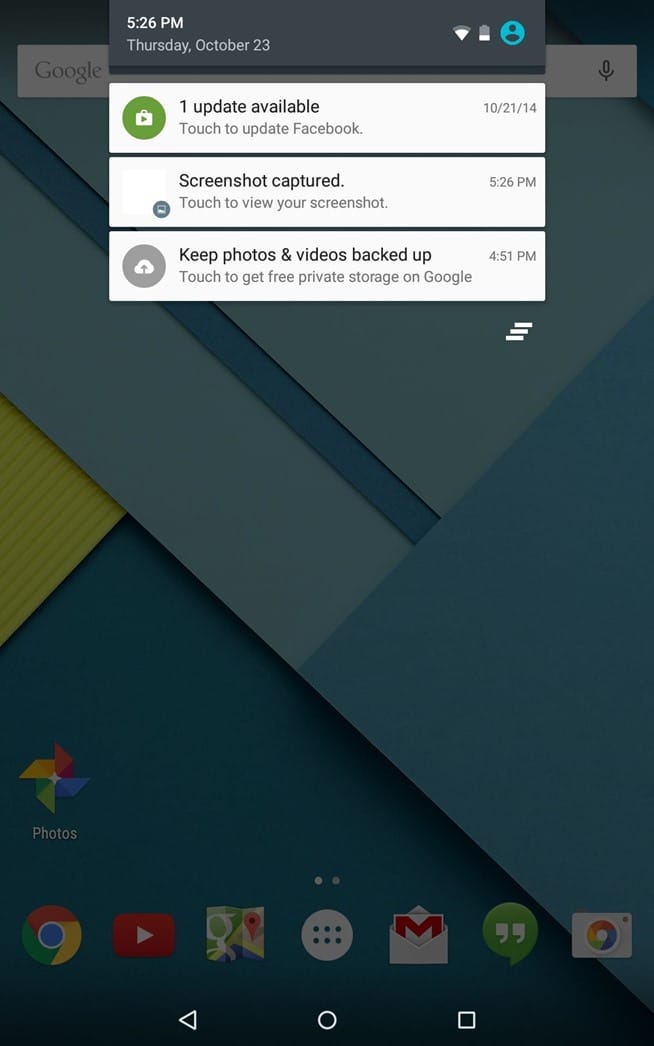
#3 Chromecast more quickly
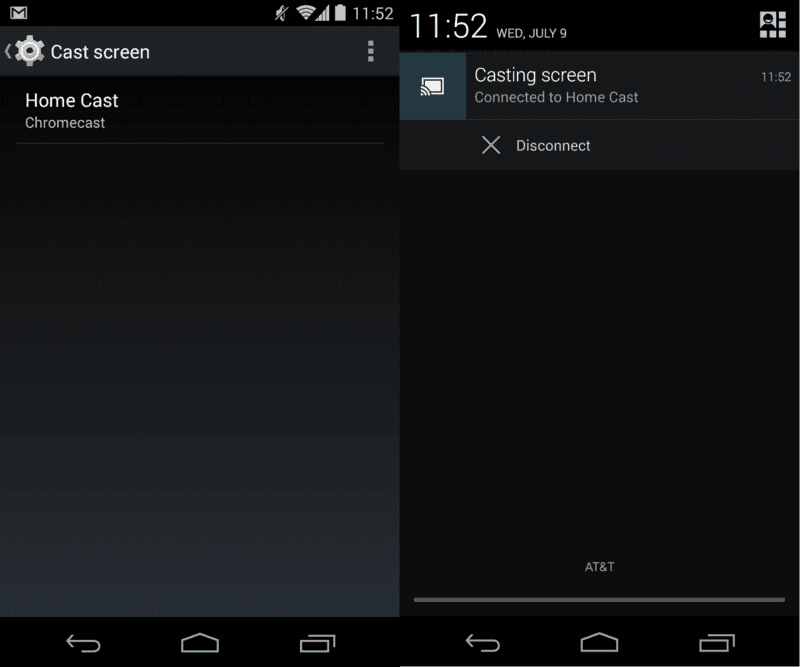
For the one's using Chromecast, this one's for you. There's an official Chromecast app from Google that lets you screencast from any device running Android 4.4.2 or higher, but the functionality is built right into Android 5.0, which is great news for anyone with one of the compact streaming dongles to hand. It's right in the notification drawer-tap on the Cast screen icon to locate your Chromecast and begin screen casting.
#2 Improve text ligibility
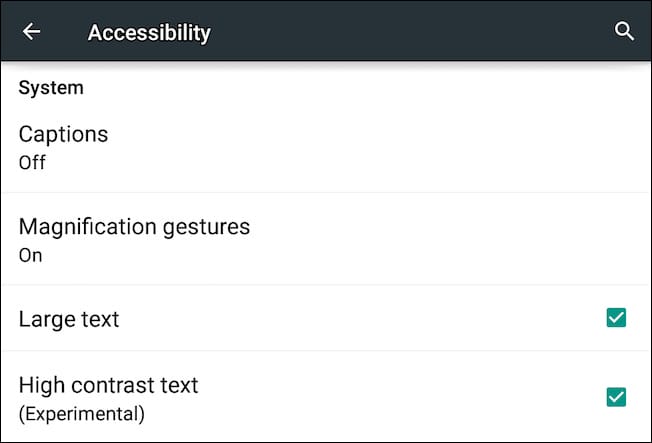
No more text related problems in the new Android Lollipop. If you were wondering if the Accessibility menu within Settings would get overlooked in the Android 5.0 upgrade, there's a new experimental feature here called High contrast text. Essentially, it gives white or difficult-to-read text a black outline when it's being viewed on a light background. It's applied to the "OK Google" text inside the home screen search bar, for example.
#1 Save the battery
Yes, finally, Save your battery as much as you can. Android 5.0 Lollipop includes a built-in battery saver mode that you can get to kick in at 15 percent battery, 5 percent battery or never (you can also switch it on and off manually). It cuts off some background syncing and vibrations and makes various other tweaks as well. If you select Battery from the Settings app you'll find the battery saver on the menu behind the three vertical dots.